Dispatch
Record which selected fulfilment items leave the warehouse.
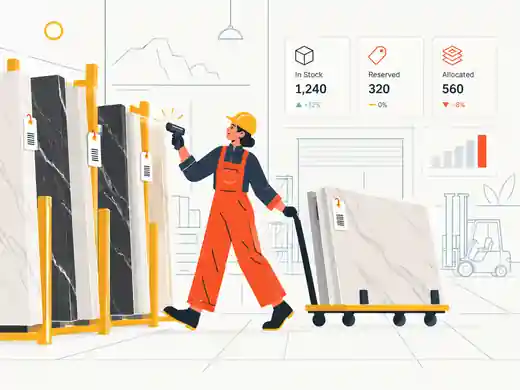
Exact buttons and available actions can vary with company plan, role permissions and enabled capabilities. Stoneware workflow rules and server-side checks remain authoritative.
Before dispatch
Confirm an eligible fulfilment exists from the allocation and that the intended fulfilment items have been picked.
Verify the exact physical identifiers before loading. A similar material or slab description is not a substitute for the allocated item.
1. Confirm picked items
Picking uses the fulfilment workflow and supported stock code/barcode context. Resolve incorrect picks before dispatch rather than compensating with notes.
2. Select what is leaving
The verified dispatch write accepts explicit item_ids. These are fulfilment-item IDs, not slab IDs, which allows controlled partial dispatch when the workflow permits it.
3. Capture transport context
The dispatch action can capture driver, carrier and vehicle. Use the available transport context to preserve chain-of-custody evidence.
4. Dispatch through the workflow
Use the controlled POST fulfilments/{id}/dispatch action under dispatch_slab_orders authority. Do not manually change fulfilment or slab status to imitate dispatch.
5. Add loading proof
Where required, attach the loading photo through the dedicated loading-photo action. Operational proof remains private and permission controlled.
6. Complete delivery or collection
For delivery, use the delivery/proof workflow and explicit fulfilment item IDs. For customer collection, complete the supported handover workflow so the warehouse and customer history remain connected.
If dispatch is blocked
Check pick state, fulfilment state, selected fulfilment-item IDs and dispatch permission first. Do not bypass the blocker by editing inventory status directly.